
How to Stop Spam from Cluttering Your Gmail Inbox (For Good)
Let’s be honest: if you’ve had a Gmail account for more than a few months, you know the struggle. Spam, promotions, and random newsletters just keep piling up. You try to unsubscribe. You block senders. But somehow, the junk keeps slipping through. And some emails don’t even give you an opt-out option.
Dealing with each unwanted message one by one is exhausting. The good news? You don’t have to. With the right settings and a few smart habits, you can seriously cut down the clutter. Here’s how to stop spam from taking over your Gmail inbox.
1. Let Gmail Filters Do the Heavy Lifting
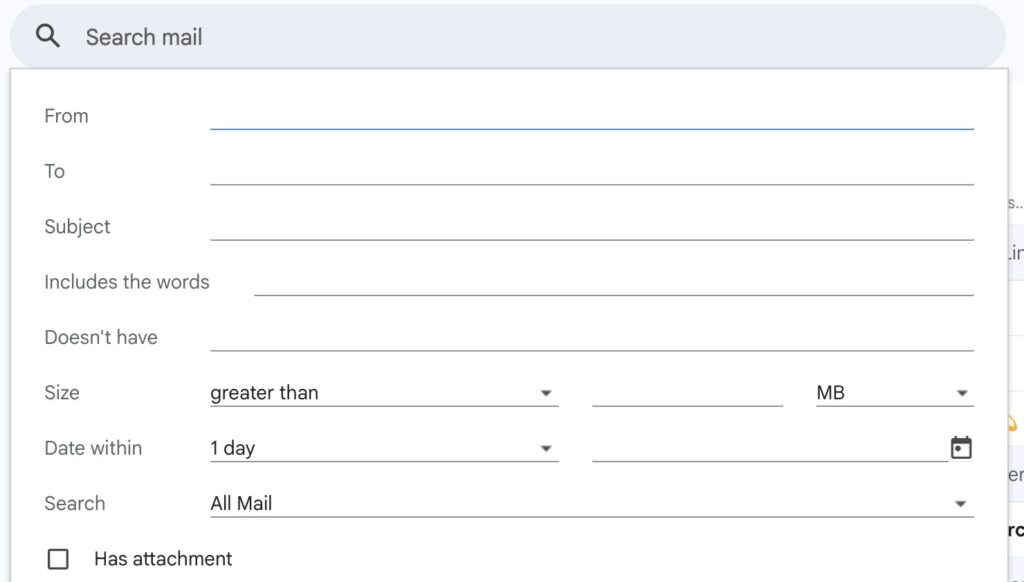
Filters are one of the most underused—and powerful—tools in Gmail. Instead of manually deleting the same type of email over and over, you can set up a filter to handle it automatically.
Here’s the easiest way: open a spammy email, click the three dots in the top-right corner, and select “Filter messages like this.” Then tell Gmail what to do—delete it, archive it, skip the inbox, or label it as spam. Once it’s set, you’re done. No more repetitive cleanup.
2. Block an Entire Domain, Not Just One Sender
Sometimes the same person or company keeps emailing you from different addresses. Blocking one sender doesn’t help—they’ll just pop up again from another variation.
The fix? Block the whole domain. For example, if you’re getting spam from newsletter@annoyingcompany.com, block @annoyingcompany.com. Just type that domain into Gmail’s search bar, click the filter icon, and choose what to do with every email coming from that domain. Problem solved.
3. Use Aliases to Catch Spam at the Source
Here’s a trick most people don’t know: Gmail lets you create aliases by adding a + sign to your email address. For example, if your email is hello@gmail.com, you can use hello+shopping@gmail.com or hello+newsletters@gmail.com.
Everything still lands in your main inbox, but now you know exactly who leaked your address. Start getting spam at hello+sketchysite@gmail.com? You’ll know where it came from—and you can filter or block it instantly.
4. Don’t Open Suspicious Emails
This one’s important. Many spam emails contain invisible tracking images. The moment you open the email, those images load and tell the sender: “This address is active and someone’s reading.” That’s an invitation for even more spam.
So if an email looks strange—weird subject line, unknown sender, too-good-to-be-true offer—don’t open it. Just delete it or mark it as spam. You can also change your Gmail settings to ask for permission before loading external images, which adds another layer of protection.
5. Turn Off Automatic Image Loading
Speaking of tracking images: they don’t work if they never load. By default, Gmail loads images automatically in emails. That’s convenient, but it also confirms to spammers that you’re a real, active user.
Head into Gmail’s settings, find the images option, and choose “Ask before displaying external images.” Now you stay in control—and spammers stay in the dark.
6. Report Spam. Don’t Just Delete It.
Deleting a spam email feels satisfying in the moment, but it doesn’t help long-term. Gmail doesn’t learn anything from a delete. What actually teaches Gmail to get better? Hitting “Report spam.”
That simple action feeds Google’s filters with real data. Over time, less spam will reach your inbox. So resist the delete button—report it instead.
7. Stop Using Your Primary Email Everywhere
Your main email address is like your phone number: you don’t want it floating around everywhere. The more places you use it—shopping sites, forums, contests, random downloads—the more it gets shared, sold, and spammed.
Keep your primary email for important stuff: banking, work, close contacts, essential accounts. For everything else, use a secondary email address. It’s a small habit that saves you a ton of inbox headaches down the road.
Final thought
Look, you’re probably never going to eliminate spam completely. That’s just the reality of the internet. But you can take back control. A few smart filters, better habits, and the right settings make a huge difference.
Start with one or two of these tips today. Your future self—staring at a clean, calm inbox—will thank you.